A 3D configurator lets your customer pick a colour, a material or a part and see the result on a model they can turn around. Until recently that meant a SaaS subscription or a custom three.js project. Today you can do it for free, with a free 3D tool, a free plugin and the WooCommerce store you already run.
This guide walks through the whole process, from the 3D file to the first order.
What you need
- A WooCommerce store (latest WordPress, any recent WooCommerce theme).
- A 3D model of your product. If you don’t have one yet, see step 1.
- Blender, free and open source, to prepare the model.
- MKL Product Configurator for WooCommerce, free on WordPress.org. Version 2 builds 3D configurators in the free core.
Step 1: Get a 3D model of your product
There are three common starting points.
- You already have CAD or design files. Furniture, bikes, machinery and jewellery makers usually do. Export to a format Blender opens (STEP via an add-on, OBJ or FBX), then clean it up.
- You have a supplier model or a marketplace model. Check the licence allows commercial use on a website.
- You start from scratch. Model it in Blender, or hire a 3D artist for a one-off job. Ask for a glTF/GLB file with one object per configurable part.
Whatever the source, the model has to be light. A configurator runs in a phone browser, not in a render farm.
Total cost: €0. You only pay later if you want options to change the price, rules between options, or extras like AR.
Step 2: Prepare the model for configuration
This is the step that makes or breaks the result. The plugin reads your model’s structure, so the structure has to match the choices you want to offer.
- Split the configurable parts into separate objects. A chair with interchangeable legs needs each leg style as its own object. A watch with three straps needs three strap objects.
- Name every object clearly.
strap_leather_brownis better thanCylinder.012. You will map these names to choices in the configurator. - Use materials for colours and finishes. If only the colour changes, one object with several materials is often enough.
- Reduce the polygon count. Use Blender’s Decimate modifier on parts that are never seen up close. Aim for a total file size in the low megabytes.
- Bake or simplify textures. 1024 or 2048 px textures are plenty on a screen. Use WebP for colour maps.
- Set the origin and scale. Apply transforms (Ctrl+A in Blender) so the model sits at the centre, at real-world scale.
- Export as glTF 2.0 (.glb). File, Export, glTF 2.0. Tick “Apply Modifiers” and enable Draco compression if the file is still heavy.
Step 3: Install the free configurator plugin
- In WordPress, go to Plugins, Add New, and search for “Product Configurator for WooCommerce”.
- Install and activate it.
- Create a product (or open an existing one) and mark it as configurable.
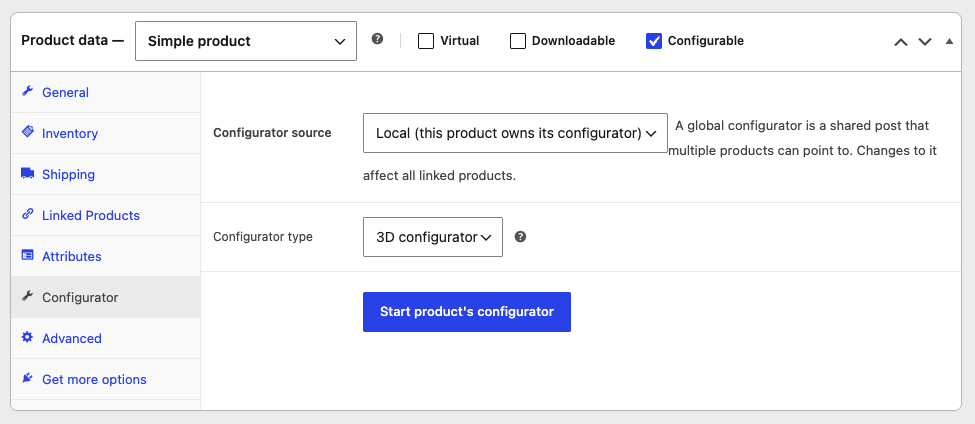
Step 4: Build the configurator
- Choose 3D as the configurator mode for this product. Each configurator is either 2D or 3D, so your customer never has to switch.
- Go to 3D objects, and Upload your .glb file.
- You can then go to 3D settings and check how the model looks in the viewer. A default environment will be loaded.
- Create a layer for each thing the customer chooses: Frame, Seat, Fabric, Strap, Dial.
- In the content section, add the choices for each layer, and add actions to the matching object or material in the model (e.g. changing material color, changing material variant or toggling object visibility).
- Set the camera angles, the lighting (an HDRI environment gives realistic reflections) in the 3D Settings.
- Preview on desktop and on a phone.
Step 5: Test and publish
- Open the product on a mid-range phone over 4G. If the model takes more than a few seconds, go back to step 2 and compress further. The plugin lazy-loads models, so the rest of the page stays fast.
- Add a configuration to the cart and complete a test order. Check the order shows every choice clearly, because that is what you or your workshop will build from.
- Publish, then link the product from your homepage and category pages.
What the free version does, and when to upgrade
| You want to | Free plugin | Paid add-on |
|---|---|---|
| Show a live 3D or 2D preview of every choice | Yes | |
| Multiple views, steps, global configurators | Yes | |
| Add the configured product to the cart | Yes | |
| Charge more for premium choices | Extra Price | |
| Hide options that don’t fit together | Conditional Logic | |
| Let customers type text or upload files | Form Fields | |
| Track stock per option, or build composite product and send choices to ERM | Stock & Linked Products | |
| Hotspots, model animations, “View in your space” AR | 3D Premium & AR |
Many shops run the free version for months before they need any of this. When they do, add-ons are billed per year and per site, with no commission on sales.
Common mistakes
- A single merged mesh. If the whole product is one object, nothing can be swapped. Split it before export.
- A 50 MB file. It looks great on your workstation and never loads on a phone.
- Too many choices on day one. Start with the three options customers ask about most, then add more.
- No 2D fallback thinking. If your product is flat (a print, a phone case, a label), a 2D layered configurator is lighter and just as convincing.
Try it
See a working 3D configurator on the e-bike demo, then download the plugin free from WordPress.org.
FAQ
Is there really a free 3D product configurator for WooCommerce?
Yes. Product Configurator for WooCommerce builds 3D configurators in its free core, with no monthly fee.
Which 3D format do I need?
glTF or GLB, with the configurable parts as separate, named objects.
Do I need to know how to code?
No. Everything is set up in the configurator editor. Developers can extend it with hooks and filters.
Will it slow my store down?
Models are compressed and load only when they scroll into view, so the rest of the page is unaffected.