Posted on

Should I use AI to build a custom product configurator for my shop?

Ask an AI coding assistant for “a 3D product configurator for my chair” and within minutes you’ll have a page with a rotating model and a few colour buttons. It feels like the problem is solved. For a demo, it is. For a shop, that page is maybe 10% of the work.

Short answer: use AI to speed up the parts around your configurator, and use a maintained plugin for the part that touches your orders. Here’s why.

What AI is genuinely good at

  • Prototyping the look. A three.js or model-viewer page that swaps colours is a classic task, and AI does it well. Great for testing an idea with your team.
  • Preparing 3D assets. AI can write Blender scripts that rename hundreds of objects, batch-export variants or generate texture variations. Text-to-3D and image-to-3D tools can produce rough models for simple products.
  • Writing content. Option descriptions, care notes, material explanations, alt text, translations.
  • Planning your rules. Describe your product and ask AI to list which options conflict. You get a first draft of your conditional logic to check with your workshop.
  • Small custom code. A WooCommerce hook or filter to tweak one behaviour, on top of a plugin that already does the heavy lifting.

Where an AI-built configurator gets hard

The visible part of a configurator is the easy part. The rest is what keeps orders correct.

  1. Cart and order data. Every choice must reach the cart, the order, the confirmation email, the invoice and the admin screen, in a format your team can build from. WooCommerce has many edge cases here (sessions, HPOS order storage, REST, block checkout).
  2. Validation. A customer must not be able to order a battery that doesn’t fit the frame. Rules have to be enforced on the server too, not just hidden in the interface.
  3. Performance on phones. Lazy loading, model compression, texture sizes, memory limits on iOS Safari. AI-generated demos usually load everything at once.
  4. Editing without a developer. Next season you add a fabric. With a custom build, that’s a code change. With a plugin, it’s a few clicks in an editor.
  5. Maintenance. WordPress, WooCommerce, three.js and browsers all ship updates. Somebody has to keep the code working, and “the AI wrote it” doesn’t help when checkout breaks on a Saturday.
  6. Security. File uploads, custom fields and AJAX endpoints are classic attack surfaces. Generated code often skips nonces, capability checks and sanitisation.

The real cost comparison

AI-built custom configuratorConfigurator plugin
Time to a working demoHoursHours
Time to a production-ready shopWeeks of developer timeDays, mostly preparing the model
Who edits optionsA developerYou, in the editor
Price and rule enforcementYou must build and test itBuilt in
Updates and compatibilityYour responsibilityThe plugin’s
CostDeveloper time + ongoing maintenanceFree core, optional add-ons per year

Custom still makes sense in some cases: a product unlike anything else, a configurator that must talk to a custom ERP or a CAD system, or a team with in-house developers who will maintain it for years. Even then, many agencies start from a plugin and extend it with hooks rather than starting from zero.

A practical way to combine both

  1. Use AI to help prepare and optimise your 3D model (Blender scripts, naming, compression settings).
  2. Build the configurator in MKL Product Configurator for WooCommerce, free, in 2D or 3D.
  3. Use AI to write option descriptions and draft your rules, then enter them in the editor.
  4. If you need one behaviour the plugin doesn’t have, ask AI for a small hook or filter, and have it reviewed before it goes live.
  5. Creating a custom Configurator theme for the MKL Product Configurator for WooCommerce – provide the Custom theme documentation to the AI together with your design to create a working configurator theme

You get the speed of AI where mistakes are cheap, and proven code where mistakes cost you orders.

The verdict

Should you use AI to build a custom product configurator? Use it to build a prototype, prepare assets and write content. Don’t rely on it alone for the part that takes money and creates orders, unless you have a developer who will own that code long term.

Try the free configurator · See the demos

FAQ

Can ChatGPT or Claude build a product configurator?

They can build a working visual demo quickly. Connecting it safely to cart, pricing, orders and stock takes much more work and testing.

Can AI generate the 3D model or layers for my product?

For simple shapes, AI 3D generators give a usable start. For products you sell, you usually still need accurate dimensions and clean, separate parts, so expect manual clean-up in Blender.

Is a plugin less flexible than custom code?

A good plugin exposes hooks and filters, so developers can extend it without forking. This is where AI shines most
Posted on

How to create a 3D Product Configurator for Free

A 3D configurator lets your customer pick a colour, a material or a part and see the result on a model they can turn around. Until recently that meant a SaaS subscription or a custom three.js project. Today you can do it for free, with a free 3D tool, a free plugin and the WooCommerce store you already run.

This guide walks through the whole process, from the 3D file to the first order.

What you need

  • A WooCommerce store (latest WordPress, any recent WooCommerce theme).
  • A 3D model of your product. If you don’t have one yet, see step 1.
  • Blender, free and open source, to prepare the model.
  • MKL Product Configurator for WooCommerce, free on WordPress.org. Version 2 builds 3D configurators in the free core.

Step 1: Get a 3D model of your product

There are three common starting points.

  • You already have CAD or design files. Furniture, bikes, machinery and jewellery makers usually do. Export to a format Blender opens (STEP via an add-on, OBJ or FBX), then clean it up.
  • You have a supplier model or a marketplace model. Check the licence allows commercial use on a website.
  • You start from scratch. Model it in Blender, or hire a 3D artist for a one-off job. Ask for a glTF/GLB file with one object per configurable part.

Whatever the source, the model has to be light. A configurator runs in a phone browser, not in a render farm.

Total cost: €0. You only pay later if you want options to change the price, rules between options, or extras like AR.

Step 2: Prepare the model for configuration

This is the step that makes or breaks the result. The plugin reads your model’s structure, so the structure has to match the choices you want to offer.

  1. Split the configurable parts into separate objects. A chair with interchangeable legs needs each leg style as its own object. A watch with three straps needs three strap objects.
  2. Name every object clearly. strap_leather_brown is better than Cylinder.012. You will map these names to choices in the configurator.
  3. Use materials for colours and finishes. If only the colour changes, one object with several materials is often enough.
  4. Reduce the polygon count. Use Blender’s Decimate modifier on parts that are never seen up close. Aim for a total file size in the low megabytes.
  5. Bake or simplify textures. 1024 or 2048 px textures are plenty on a screen. Use WebP for colour maps.
  6. Set the origin and scale. Apply transforms (Ctrl+A in Blender) so the model sits at the centre, at real-world scale.
  7. Export as glTF 2.0 (.glb). File, Export, glTF 2.0. Tick “Apply Modifiers” and enable Draco compression if the file is still heavy.

Step 3: Install the free configurator plugin

  1. In WordPress, go to Plugins, Add New, and search for “Product Configurator for WooCommerce”.
  2. Install and activate it.
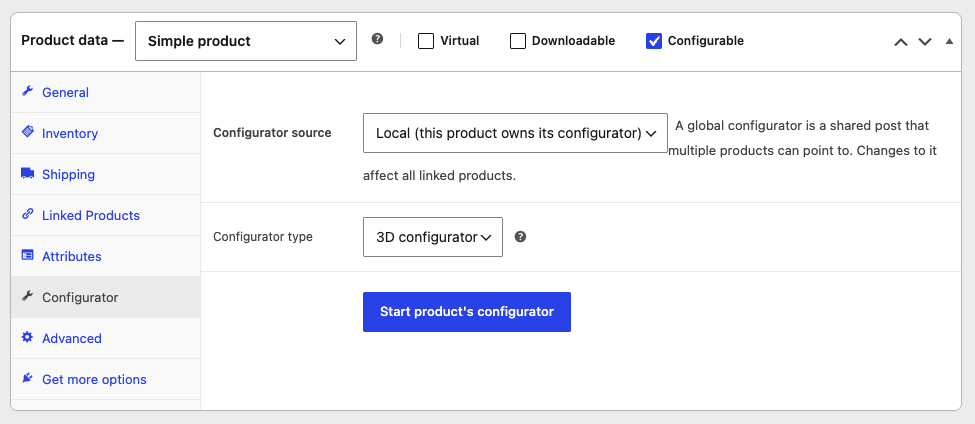
  3. Create a product (or open an existing one) and mark it as configurable.

Step 4: Build the configurator

  1. Choose 3D as the configurator mode for this product. Each configurator is either 2D or 3D, so your customer never has to switch.
  2. Go to 3D objects, and Upload your .glb file.
  3. You can then go to 3D settings and check how the model looks in the viewer. A default environment will be loaded.
  4. Create a layer for each thing the customer chooses: Frame, Seat, Fabric, Strap, Dial.
  5. In the content section, add the choices for each layer, and add actions to the matching object or material in the model (e.g. changing material color, changing material variant or toggling object visibility).
  6. Set the camera angles, the lighting (an HDRI environment gives realistic reflections) in the 3D Settings.
  7. Preview on desktop and on a phone.

Step 5: Test and publish

  • Open the product on a mid-range phone over 4G. If the model takes more than a few seconds, go back to step 2 and compress further. The plugin lazy-loads models, so the rest of the page stays fast.
  • Add a configuration to the cart and complete a test order. Check the order shows every choice clearly, because that is what you or your workshop will build from.
  • Publish, then link the product from your homepage and category pages.

What the free version does, and when to upgrade

You want toFree pluginPaid add-on
Show a live 3D or 2D preview of every choiceYes
Multiple views, steps, global configuratorsYes
Add the configured product to the cartYes
Charge more for premium choicesExtra Price
Hide options that don’t fit togetherConditional Logic
Let customers type text or upload filesForm Fields
Track stock per option, or build composite product and send choices to ERMStock & Linked Products
Hotspots, model animations, “View in your space” AR3D Premium & AR

Many shops run the free version for months before they need any of this. When they do, add-ons are billed per year and per site, with no commission on sales.

Common mistakes

  • A single merged mesh. If the whole product is one object, nothing can be swapped. Split it before export.
  • A 50 MB file. It looks great on your workstation and never loads on a phone.
  • Too many choices on day one. Start with the three options customers ask about most, then add more.
  • No 2D fallback thinking. If your product is flat (a print, a phone case, a label), a 2D layered configurator is lighter and just as convincing.

Try it

See a working 3D configurator on the e-bike demo, then download the plugin free from WordPress.org.

FAQ

Is there really a free 3D product configurator for WooCommerce?

Yes. Product Configurator for WooCommerce builds 3D configurators in its free core, with no monthly fee.

Which 3D format do I need?

glTF or GLB, with the configurable parts as separate, named objects.

Do I need to know how to code?

No. Everything is set up in the configurator editor. Developers can extend it with hooks and filters.

Will it slow my store down?

Models are compressed and load only when they scroll into view, so the rest of the page is unaffected.

Posted on

What’s new in Product Configurator v2

3D configurator mode

The headline feature of v2 is native 3D product configuration, powered by Three.js.

  • Choose between a 2D configurator (classic layered images) and a 3D configurator per product.
  • Upload GLTF/GLB models, with support for compressed assets (Draco, Meshopt).
  • Manage a dedicated 3D Objects library: models, lights, and environment maps.
  • Configure the scene visually in the admin with a live 3D preview.
  • Drive the viewer from your existing layer/choice logic with 3D actions:
    • Show/hide objects
    • Switch material variants
    • Apply textures and colors
    • Change material properties
  • Fine-tune the experience with:
    • Environment maps (HDRI presets or custom environments)
    • Orbit controls (polar/azimuth limits, zoom limits)
    • Camera positions linked to angles, including import from GLTF cameras
    • Post-processing (reflections, ambient occlusion, bloom, anti-aliasing)
    • Ground plane and fake shadow, plus optional real-time shadows
  • 3D screenshots can be captured and used as configuration images in the cart.

If you already work with 3D renders or CAD exports, you can now bring those models directly into the configurator instead of relying only on stacked PNG layers.

Global configurators

Manage configuration data more efficiently across many products:

  • Create Global configurators — shared configuration posts that multiple products can reference.
  • Link a product to a global configurator, or keep a local copy.
  • Convert an existing product configuration into a global configurator, or detach into a local copy when needed.
  • WPML-compatible global configurator workflow.

Ideal if you run several products that share the same base options, or if you want one place to maintain a product family’s configuration.

Global layers

Reuse individual layers across products:

  • Create Global Layers (shared layer + choices).
  • Import them into any product configuration.

Useful for common option sets — finishes, sizes, add-ons — that appear on many products.

Redesigned admin experience

The product editor has been significantly reworked:

  • Cleaner navigation with updated icons and layout.
  • Configurator options moved to their own tab.
  • 3D settings integrated into the main editor sidebar.
  • Improved mobile admin UX — slide-in panels, swipe gestures, and smoother navigation on tablets and phones.

Improved data storage

Configuration data is moving to a new chunked storage format (per-layer meta instead of large monolithic blobs):

  • Better performance and reliability for large configurations.
  • Built-in integrity checks.
  • Automatic migration tooling with clear admin notices.

Security enhancements

  • Rate limiting on sensitive frontend actions.
  • Frontend action tokens for protected operations.
  • Optional CAPTCHA support (Cloudflare Turnstile, hCaptcha) for guest users.

Other improvements

  • Add to cart from an existing order (“order again” with configuration restored).
  • Safer JSON handling for stored configuration data.
  • Continued compatibility work across the WooCommerce ecosystem.

Important upgrade warnings

Please read this section carefully before upgrading production sites.

1. This is a major release — test on staging first

V2 introduces new storage formats, new admin UI patterns, and an entirely new 3D pipeline. We strongly recommend upgrading on a staging or development site first, and verifying every configurable product before going live.

2. Automatic data migration on save

When you upgrade, existing configurations will be migrated to the new chunked storage format the next time you save each product.

  • You may see a “Data migration required” notice in the configurator home screen.
  • Legacy data is kept alongside the new format until you confirm everything works.
  • You can then delete legacy data, or restore from legacy if something goes wrong.

Back up your site and database before upgrading.

3. Premium add-ons must be updated

If you use premium add-ons (Extra Price, Conditional Logic, Form Fields, Stock Management, Text Overlay, Save Your Design, Multiple Choice, etc.), you will need v2-compatible versions of those add-ons.

Do not upgrade the main plugin to v2 until your add-ons are confirmed compatible. Mixing an old add-on with v2 can cause missing features or broken behavior — especially in 3D mode.

4. Switching between 2D and 3D is not automatic

The new Configurator type setting lets you choose 2D or 3D per product. These are different workflows:

  • 2D continues to use layered images (your current setup).
  • 3D requires GLTF models, 3D objects, and 3D-specific choice actions.

Changing the type requires updating the product to reload the correct editor. Existing 2D configurations are not automatically converted to 3D.

5. Custom themes and CSS may need updates

V2 includes admin and frontend markup changes. If you use a custom configurator theme or custom CSS targeting the configurator, plan time to review and adjust after upgrading.

6. 3D mode has higher resource requirements

3D configurators load WebGL assets and may use post-processing effects. Consider:

  • Optimised GLTF files (compressed geometry, reasonable texture sizes).
  • Hosting with adequate memory and modern browser support for your customers.
  • Enabling only the post-processing effects you actually need.

7. Global configurators and variable products

Global configurators are not available on variable products unless “Variations share the same configuration” is enabled. Check this setting if you plan to use global configurators on variable products.

8. Global configurators affect all linked products

When a product points to a global configurator, changes apply to every linked product. Use local copies when you need product-specific overrides.


Recommended steps before upgrading

  1. Back up your site and database.
  2. Update all premium add-ons to their v2-compatible releases.
  3. Upgrade on a staging site first.
  4. Open each configurable product, review any migration notices, and save once to complete migration.
  5. Test thoroughly on the frontend: configuration, pricing, add to cart, cart/checkout display, and any quote/request flows you use.
  6. Only delete legacy configuration data after you have verified everything works.
  7. If adopting 3D, start with one pilot product before rolling out across your catalogue.

Resources

Thank you for using Product Configurator for WooCommerce. V2 is the biggest step we’ve taken since the plugin launched, and we’re excited to see what you build with it — in 2D and 3D.